
Two halves to this. What happens in the cab when somebody tries to start a machine, and what happens in the portal when you set it all up.
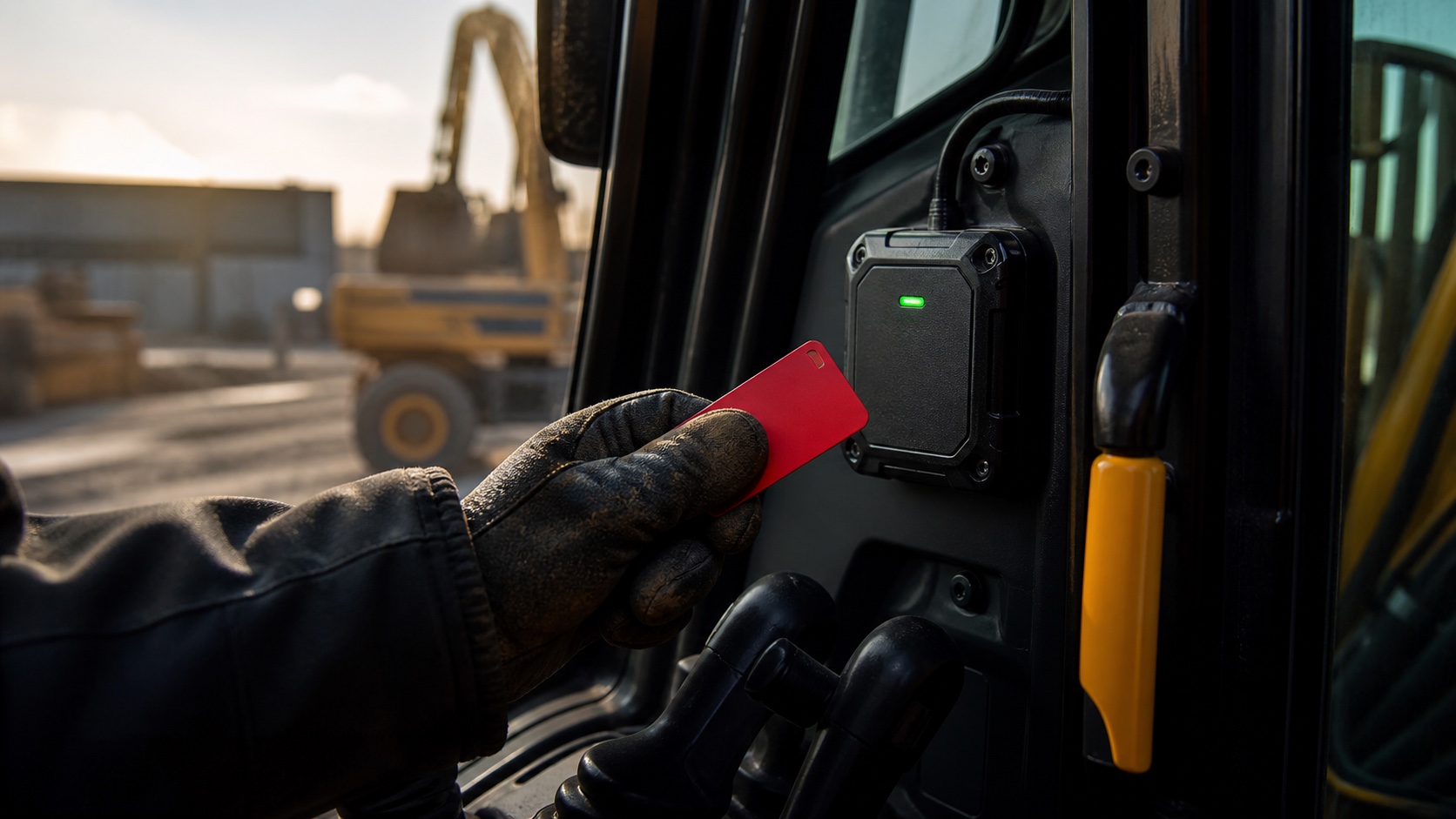 Machine ready
Every authorised driver is allocated their own Bluetooth Tag — one Tag, one person. The unit picks it up as they get into the cab, so there is nothing to present and nothing to swipe, and the machine stays completely immobilised until the check is satisfied. The unit holds that driver’s identity, their training qualifications and any limits on what they may operate.
Licence type and training both check out. The machine is released and starts normally. The start is logged against the operator, the vehicle and the time.
Wrong licence for this machine, training out of date, or an unknown Tag. The machine stays immobilised and the operator needs to speak to the site manager. The refused attempt is logged.
Access control is easy to describe and easy to design badly. These four decisions are what stop it becoming a nuisance that gets bypassed by week three.
Take the Tag out of range while the machine is running and it does not stop dead. There is a 30-second window before shutdown — long enough to be safe, short enough that the Tag cannot be walked off to start something else.
That same delay is what prevents a single Tag being used to run two pieces of equipment at once. If the Tag is not with the machine, the machine winds down.
Training records are held inside the i-am unit itself, and rewritten automatically every time anything changes on a driver’s record. Because the unit is not asking a server for permission, machines keep working outside cellular coverage — in tunnels, cuttings and deep basements.
A denied start is as useful as an allowed one. Wrong licence type, expired training or an unknown Tag — the attempt is written to the event log with the time and the machine.
One tick box, set per vehicle, and it changes when the immobiliser engages. Getting this backwards causes real problems on site, which is why it is worth reading twice.
Open a browser and go to tad-tracker.com/login. If you already have details, sign in. If not, click the blue Create an account tab and register with your name, a company or personal email address, and a password of your own choosing.
Accept the terms and privacy policy, click Register, and you are in.
For the foreseeable future, new companies and operatives are added by TAD personnel. You will not be left to work out the account structure on your own — ring 01923 712430 and we will set the shell up with you.
Signing in lands you on the dashboard. Go to the Users tab to find your profile, then click the wrench icon in the row to open it. You will see the details you entered along with the tag number assigned to you and your licences.
Two dropdowns control what somebody can do:
To add somebody new, fill in first and last name, access level, email address, password and entity, then click Save. You can adjust everything afterwards.
Each user is allocated a role by your admin, who is also responsible for adding driver training and expiry dates. Inside a profile, click Edit licences.
Click the blue box next to New licence, choose the licence you need from the list, then enter its expiry date and click Add licence.
Expiry dates go in as Year-Month-Day. Get this right and the system does the rest — an out-of-date ticket stops being a filing problem and starts being an immobiliser.
Every authorised driver gets their own Bluetooth Tag, and no two drivers share one. Tags are paired at the machine, not at a desk. Go to a vehicle with a TAD i-am fitted, switch the ignition on, hold the TAG button for at least five seconds, then switch the vehicle off.
Your admin refreshes the Users page and a new field appears at the bottom. Select the vehicle the person went to, and the tag is allocated to them. From then on the tag number and its battery level show against that user.
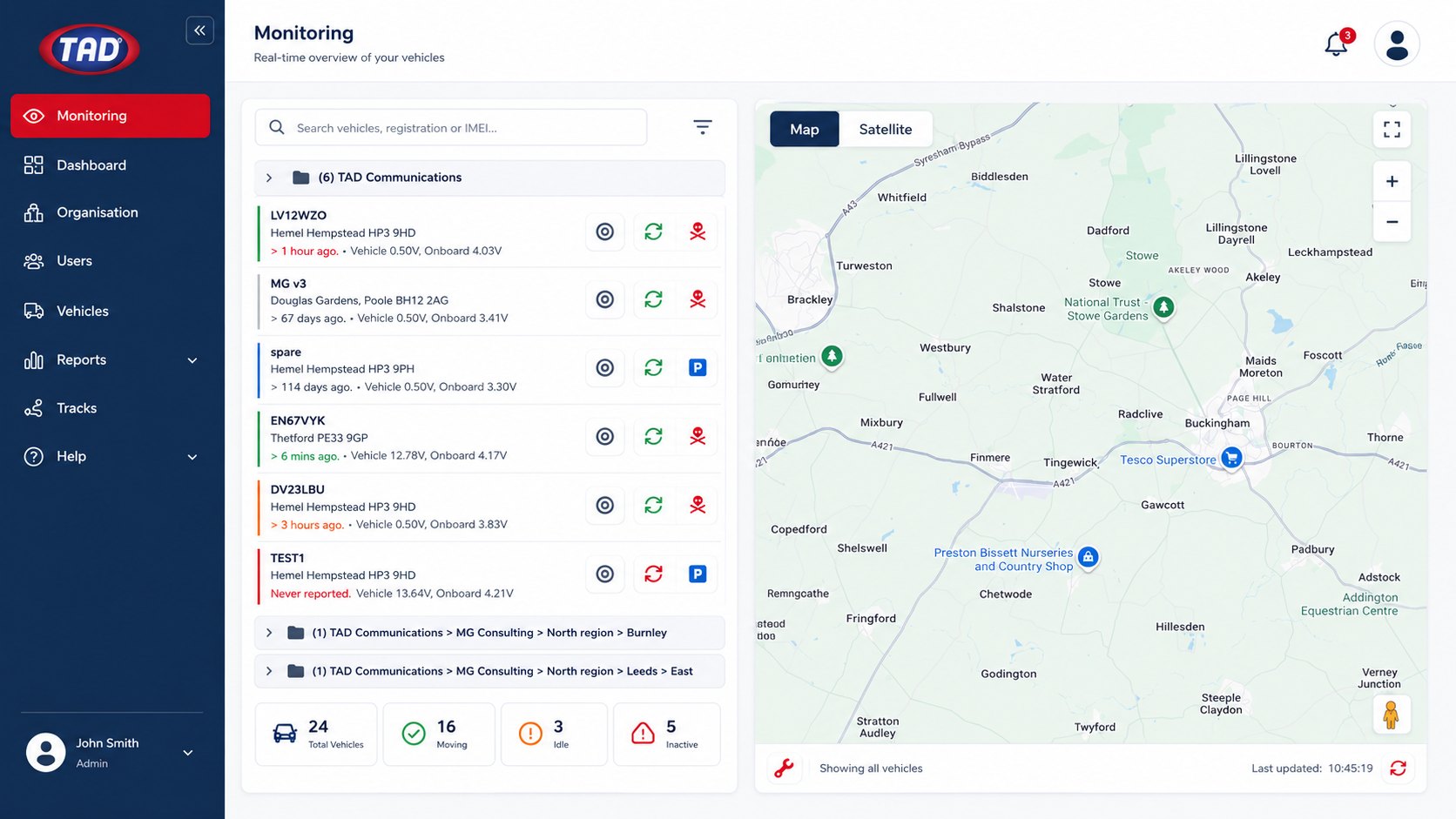
A vehicle appears once a TAD i-am is installed and the ignition has been switched on — the new unit goes live and shows in the Find / Edit Vehicles list. IMEI and SIM numbers pick up automatically; registration and the rest get added by hand.
Click the row showing the IMEI to open it. You can set the make and model, the licence required, the organisation, which vehicle a licence is assigned to, and whether the tag system is enabled.
Ring TAD on 01923 712430 when the unit is in, so we can activate it while you are still with the machine.
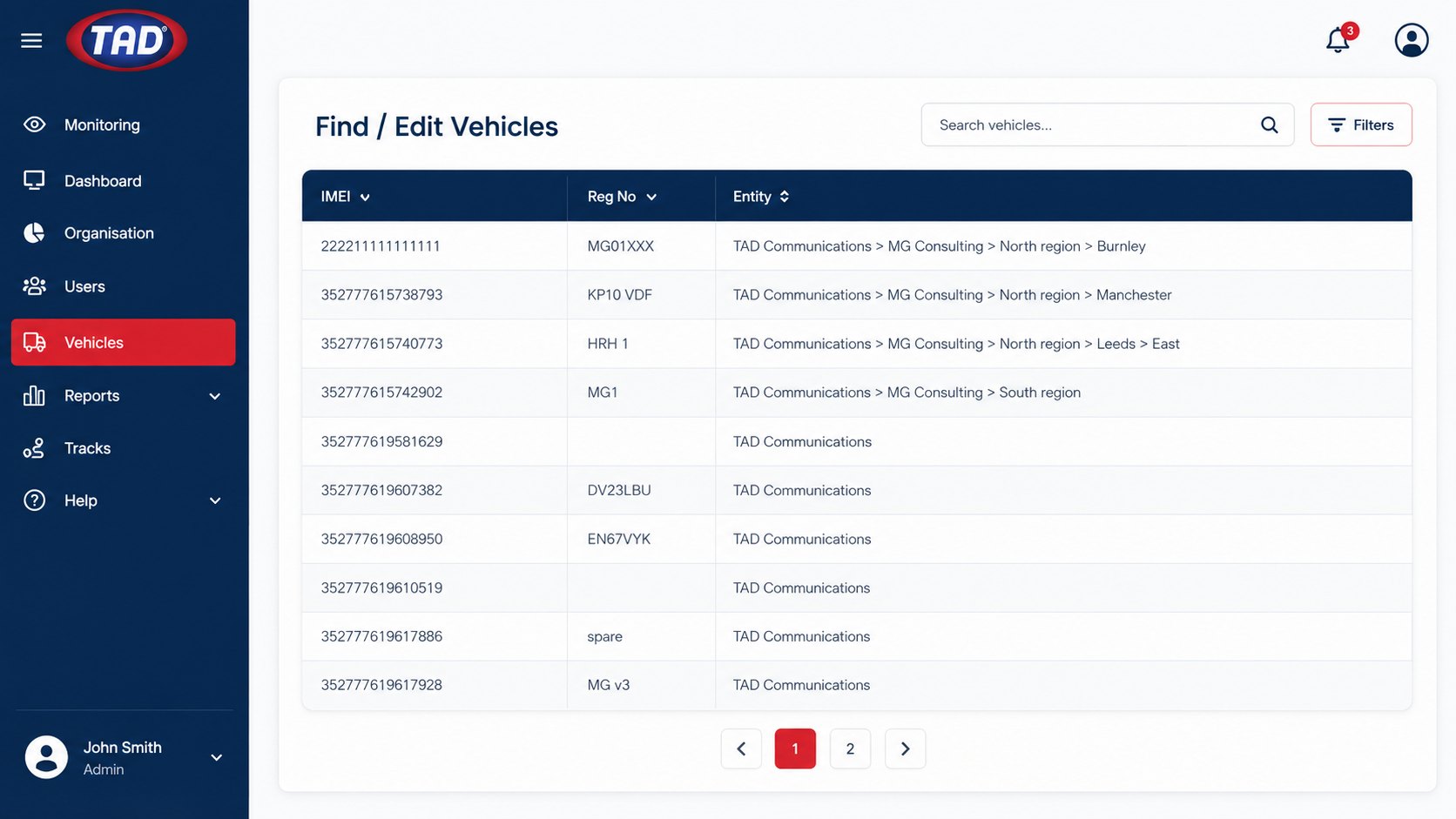
The Organisation column shows every branch linked to your company address: the main base, with smaller bases nested underneath. Click the green plus icon in the main base section to add a new branch, fill in the details and click Save Changes.
To edit an existing base, click its wrench icon, update whatever has gone out of date and save. The edit page also lets you add notes for employees at that base.
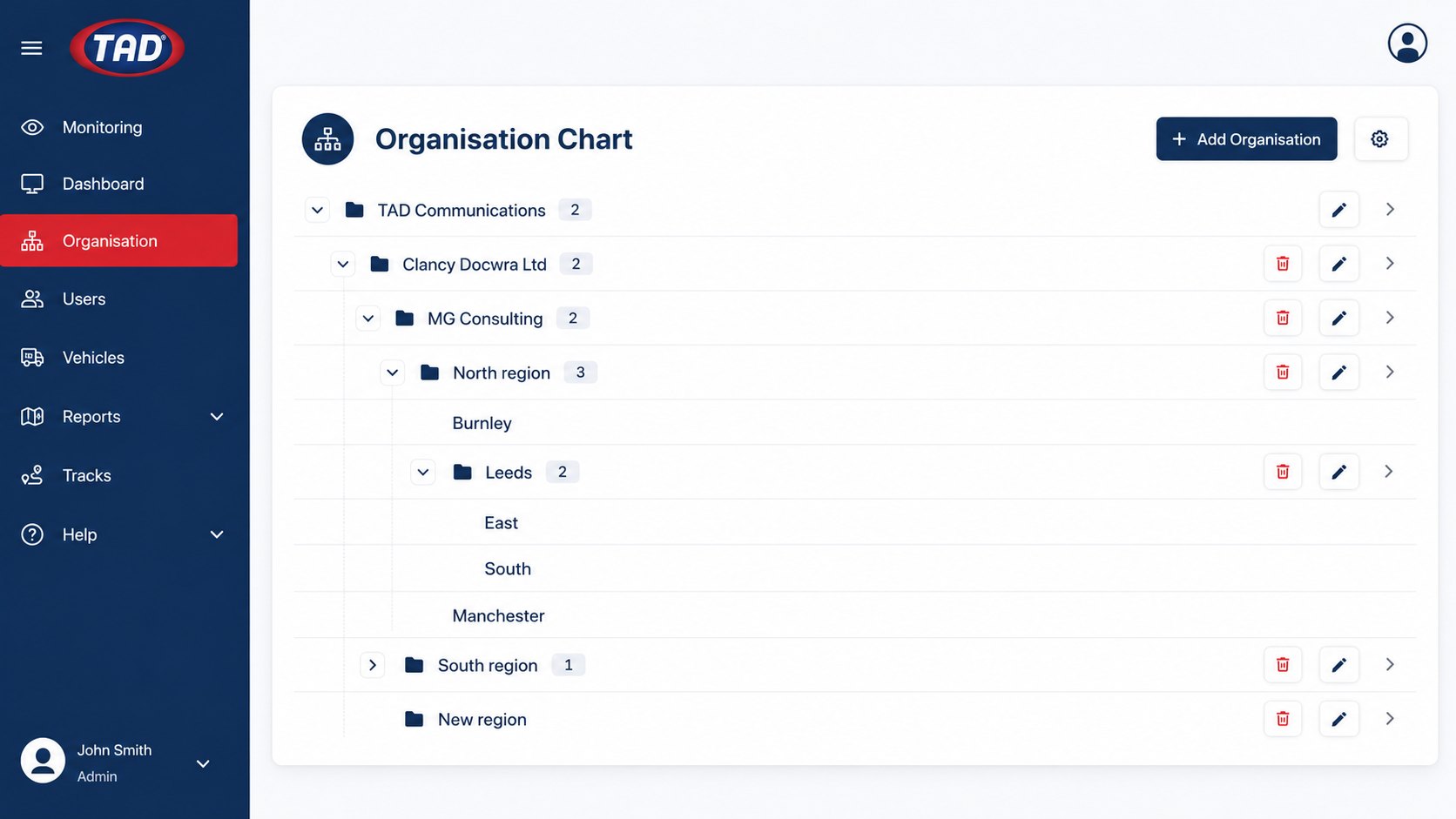
The Monitoring column shows live event locations. Licence tags run down the left grouped by company base; the map sits on the right. Each licence shows the registration, location and postcode, time, and tag battery voltage.
A pair of revolving arrows sits against each unit and tells you whether it is carrying the current driver records. Green means that unit is fully up to date. Red means an update is still on its way down to it — the machine carries on working from the records it already holds until the new ones land.
Tag battery voltage should not drop to 3 volts. If it does, the battery is switched off and placed into deep sleep — and you are notified about the low battery before it gets there.
In the Reports column, open Live Events. The page shows live data for each tracker, refreshing every few minutes, and records movement detected while a vehicle is marked stationary.
Every record carries the time of the event, the registration number, the licence number and expiry date, the vehicle owner, and the action — ignition on, moving, stationary, start with tag, ignition off.
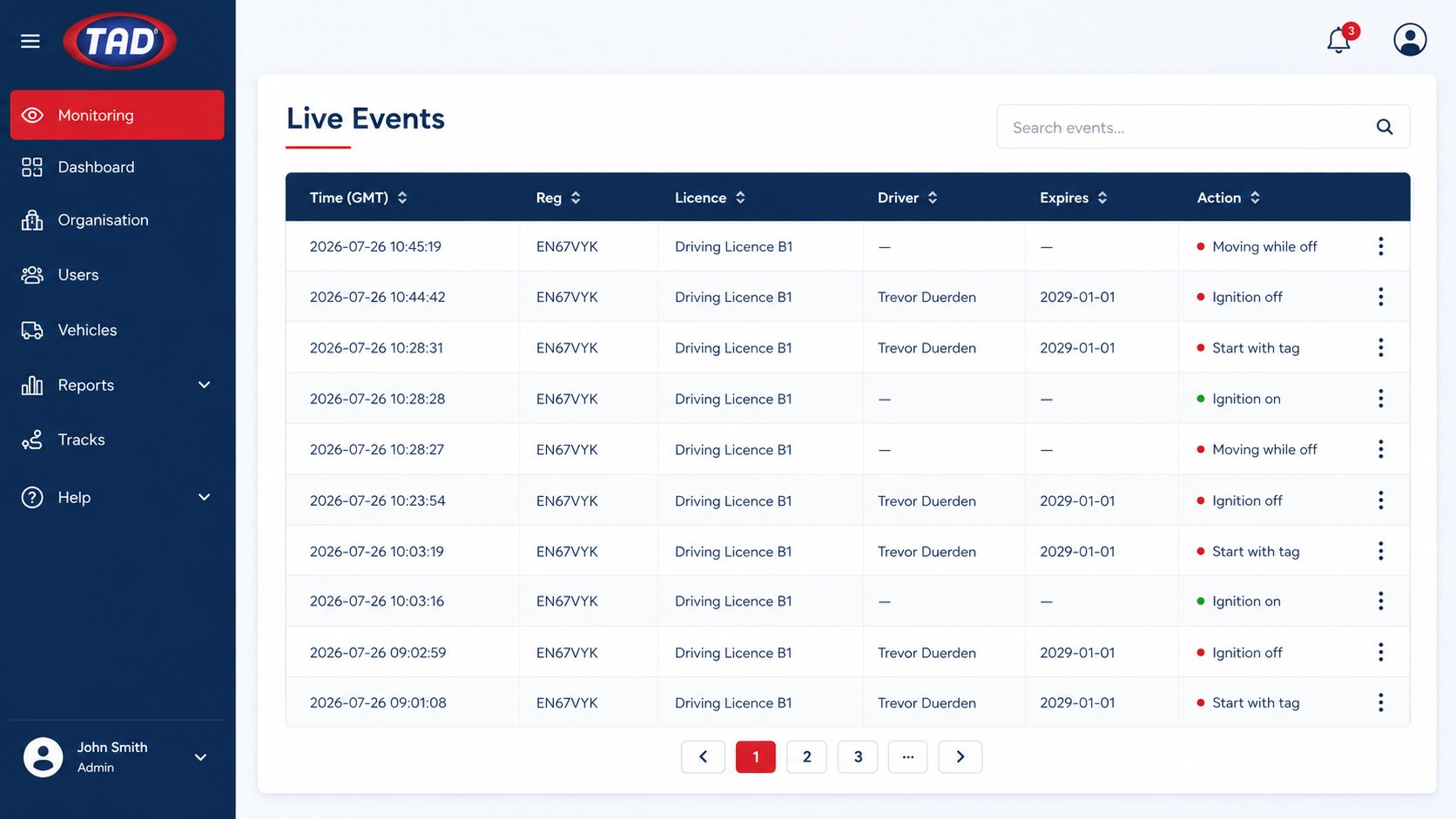
Markers sit next to every licence, so you can read the whole fleet at a glance. The revolving arrows are the ones to watch: they tell you which units are carrying the current driver records.
Current status of the vehicle. Click it to track and locate the machine now.
The unit holds the current driver and training records. Fully up to date.
A record change has not reached the unit yet. It keeps running on what it holds.
Parked and stationary. The normal resting state.
Marked as parked, but movement detected. Look at this one.
Tag battery floor. Below this the tag deep-sleeps; you are told first.
Sixteen pages covering login, users, vehicles, organisation, monitoring and reports.
Tell us what you are trying to control and we will tell you honestly whether TAD i-am is the right answer.


